Display and moderation
Screen and display responses safely
Moderate incoming work, focus the response stream, and prepare a classroom display.
Reviewed 27 September 2026 · Current Ed.ie interface
Screen submissions before displaying them
Turn on Screen submissions under Room controls before projecting the response stream. New submissions are then held as hidden until a host chooses to show them.
Screening affects new submissions. Review the existing stream before opening a projector popout, because responses already visible are not automatically hidden when screening is enabled.
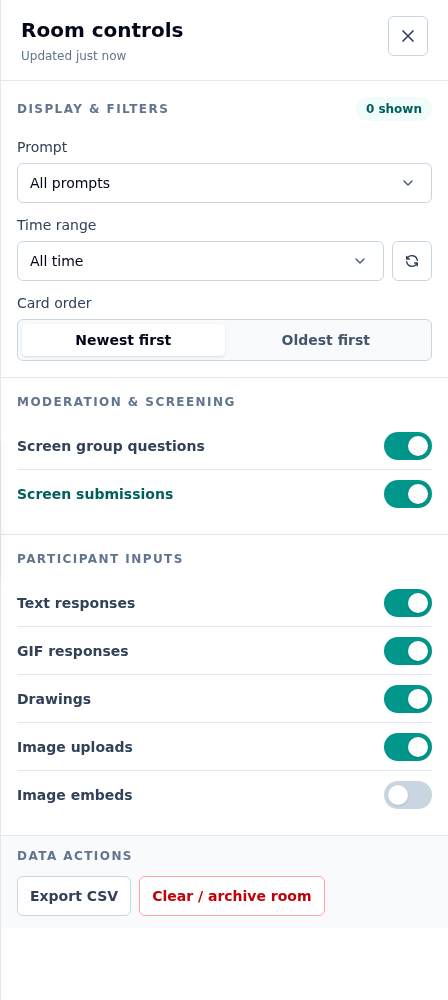
Select the image to open a larger version.
Hide or restore one response
Use Hide on a response card to remove it from the visible stream. A hidden response remains available to hosts for moderation and export. Use Show to restore it.
Hiding is appropriate for an irrelevant, duplicate, or inappropriate item. It does not close participant access or affect other responses.
Work with response cards
Select the + control on a card to expand it across the response stream; select − to collapse it. Use the copy control inside a written response to place its text on the clipboard.
Hosts can edit the written part of a response and save the corrected text. Editing does not replace an attached drawing, GIF, or private image. Make substantive changes only when there is a clear teaching reason, and explain them when participant meaning could otherwise be misrepresented.
Drag a card by its outer edge to set a custom order. Interactive controls inside the card do not start dragging.
Filter and reorder cards
In Room controls, filter the stream by Prompt or Time range. Choose the card order, or drag a card by its edge to set a custom arrangement.
These are display choices, not deletion. The submissions popout follows the shared display settings, so another host changing filters or order can change the projected view too.
Use a projector view
Select Pop out submissions for a clean response window. Use the dashboard to moderate while the popout is shown on the projector.
You can also turn on Response chart, choose a column, pie, or word-cloud view, and select Pop out. Charts use the typed responses in the current filtered view.
Compare common controls
| Action | Effect | Typical use |
|---|---|---|
| Turn off Accepting responses | Prevents new participant activity | The response period has ended |
| Hide a response | Removes one response from the visible stream | Moderating one item |
| Screen submissions | Holds new responses for host review | Projecting responses safely |
| Filter responses | Changes the current host and display view | Focusing on a prompt or time period |
| Clear / archive room | Clears active responses and questions while retaining an archive | Preparing for another activity |
Troubleshoot responses that are not appearing
- Choose All prompts and All time in Room controls.
- Check whether the response is hidden because screening is enabled.
- Select Refresh responses if the live connection reports a problem.
- Confirm you and the participant opened the same hosted space and session.