Getting started
Run your first Ed.ie session
Prepare a prompt, invite participants, and collect your first responses.
Reviewed 27 September 2026 · Current Ed.ie interface
Before you begin
You need an Ed.ie host account and access to at least one hosted space. A laptop or desktop works best for the live dashboard.
Allow a few minutes before class for a test run. Open the participant page in a private window or another browser so that you see the same experience as your class.
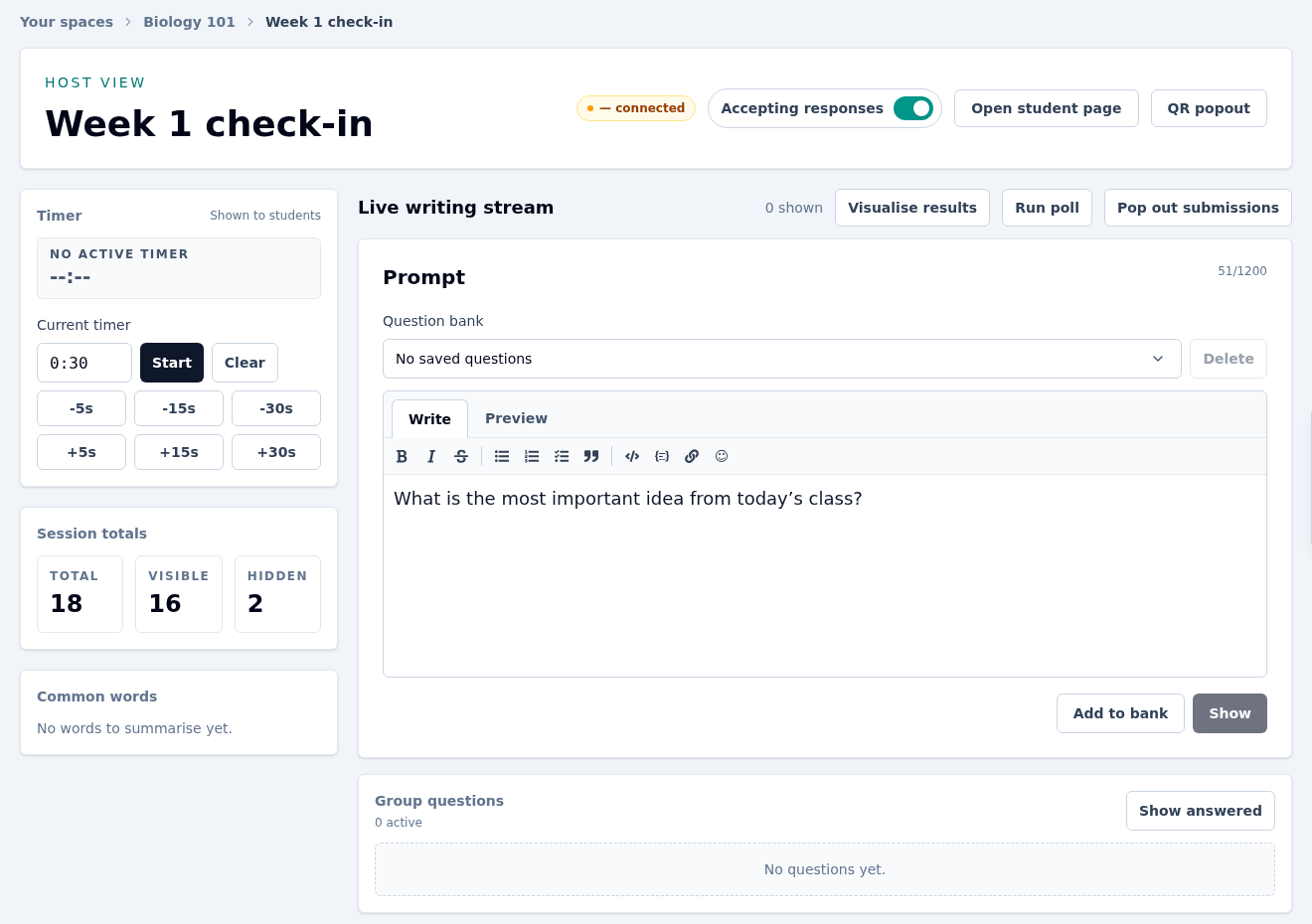
Select the image to open a larger version.
Open or create a session
- Sign in and choose a hosted space from Your spaces.
- Under Open a session, enter a short session code such as
week-1. - Select Open session. Ed.ie opens an existing session with that code or creates it if it does not exist.
A session code only needs to be unique within its hosted space.
Show a prompt
- Write your question or instruction in Prompt.
- Select Show.
The saved prompt appears on participant screens. Typing in the editor does not change their prompt until you select Show.
Invite participants
Select QR popout to display a scannable code, or share the hosted-space code and session code. Participants can enter both codes at /join. They do not need an account.
Turn on Accepting responses when you are ready. This controls new submissions, questions, and poll activity without removing anything already collected.
Watch and present responses
Text, drawings, GIFs, and images arrive in the response stream when those input types are enabled. Use Room controls to:
- filter by prompt or time;
- choose the card order;
- screen new submissions before displaying them;
- enable or disable participant input types; and
- export or archive the activity.
Use Pop out submissions when you want a cleaner projector view. Test screening before class if participant responses will be projected live.
Finish the activity
- Turn off Accepting responses.
- Select Export CSV in Room controls if you need a copy.
- Select Clear / archive room when you are ready to remove the current responses and group questions from the live room.
Archiving keeps the activity available to CSV export. Ed.ie offers Undo archive immediately after the action.
If something does not work
- If participants cannot join, confirm both codes and make sure Accepting responses is on.
- If the prompt has not changed, select Show and ask the participant to wait for the live update.
- If responses are missing, clear the prompt and time filters in Room controls, then use Refresh responses.