Live activities
Run a live poll
Prepare answer choices, control voting, and present or download the results.
Reviewed 27 September 2026 · Current Ed.ie interface
Before you begin
The session must be accepting responses before a new poll can start. Select Run poll from the session dashboard.
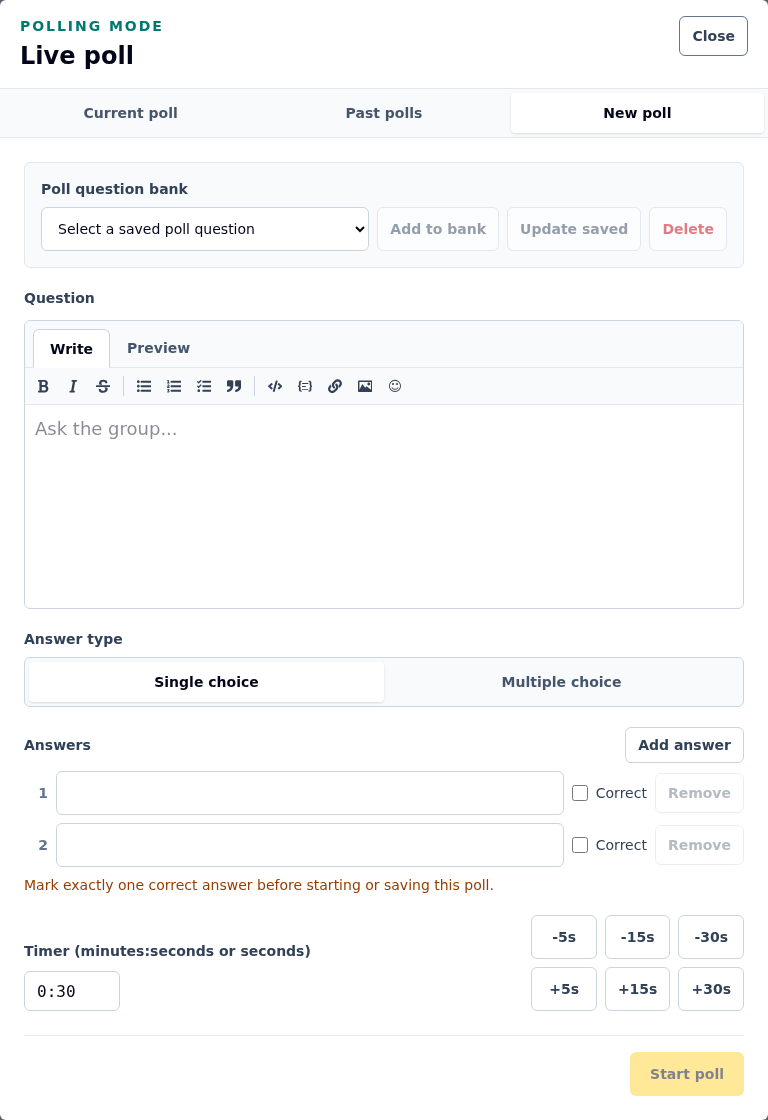
Select the image to open a larger version.
Prepare a poll
- Enter the Question.
- Choose Single choice or Multiple choice.
- Enter between two and eight answers.
- Mark the correct answer or answers. A single-choice poll requires exactly one correct answer.
- Set the timer using minutes and seconds or the quick adjustments.
- Start the poll.
Participants see the poll over their normal session page. Each browser receives an anonymous poll-participant marker so its response can be recognised.
Control a live poll
While voting is live, use the extension buttons to add time or select End poll to stop voting early. When the timer reaches zero, voting ends; select Close poll when you are finished with the result.
Use Restart poll to run the same question and answers again with a fresh response set. Only one poll can be live in a session at a time.
Reveal and present results
The host view updates as responses arrive. If the poll has correct answers, the solution remains concealed until voting ends or you choose the reveal control.
Open the poll results popout for a projector-friendly display. Select Download CSV to save the current or a past poll’s results.
Reuse a poll question
Use the poll question bank to save the current definition, load a saved poll, update it, or delete it. Loading a saved item fills the editor; it does not start voting until you choose the start action.
Past polls remain available under Past polls, where you can review, restart, or download them.
Troubleshoot a poll that will not start
- Reopen Accepting responses if the session is closed.
- End the current poll before starting another.
- Enter at least two non-empty answers and no more than eight.
- For Single choice, mark exactly one answer as correct.
- Check the message at the bottom of the poll panel for the field that needs attention.